Как да направите снимката ви да изглежда професионална за LinkedIn
Направете снимката си за LinkedIn да изглежда професионална с ясна изходна снимка, кадриране според ролята, реалистични AI настройки за портрет и финална проверка преди качване.
Накратко
Снимката трябва да изглежда като вас сега, в работна среда, без да привлича внимание към редакцията. Започнете с ясно лице, отхвърлете всеки резултат, който променя самоличността, и използвайте AI само за частите, които се нуждаят от помощ: фон, гардероб, осветление, кадриране, изражение и леко ретуширане.
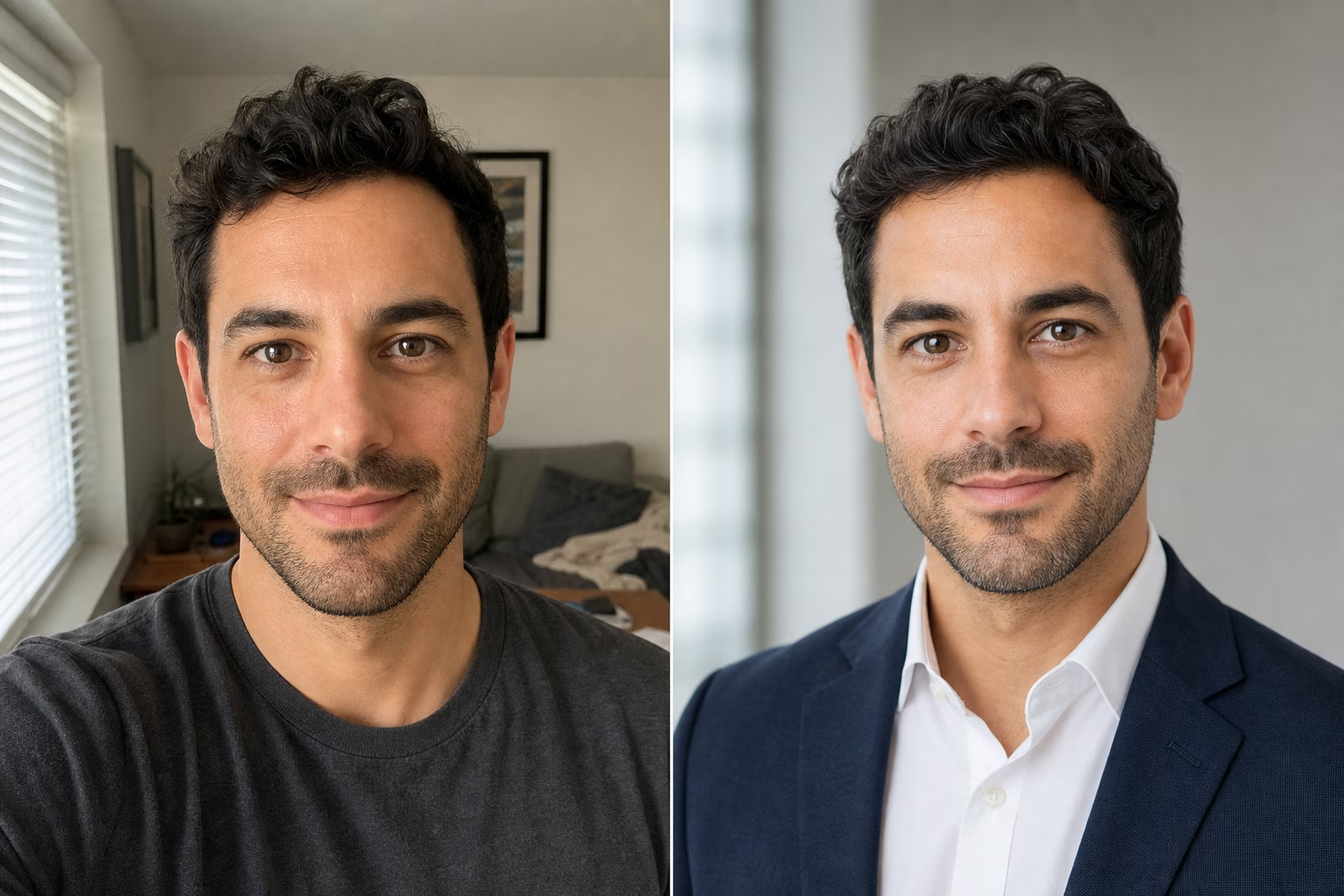
За LinkedIn запазете редакцията дискретна: скорошно лице, ясни очи, подходяща за работа среда, без промяна на самоличността.
Насоките за профила на LinkedIn Help казват, че профилната снимка помага на членовете да се откроят и може да доведе до до 2 пъти повече прегледи на профила. Снимката не трябва да изглежда лъскава или прекалено обработена. Трябва да изглежда като вас в контекст, в който някой би могъл да си представи работа с вас.
LinkedIn показва профилни снимки в кръг в много части на продукта, така че оставете място около косата, челюстта, яката и раменете. Изискванията за качване на LinkedIn Help изброяват размери на профилната снимка от 400 x 400 пиксела до 7680 x 4320 пиксела, с поддръжка на JPG и PNG и лимит за размер на файла от 8 MB. Качете квадратен портрет, за да можете да решите кадрирането, преди LinkedIn да приложи кръглата маска.
LinkedIn също така поставя граница относно приликата: неговите насоки за профилна снимка казват, че профилната снимка трябва да отразява потребителя. Запазете само AI редакции, които запазват вашето лице, възраст, изражение, тон на кожата, линия на косата и очила.
Изберете най-малко редактираната версия, която все още решава проблема. Ако редакция променя формата на лицето, възрастта, изражението или текстурата на кожата, използвайте по-проста версия.
Преди да отворите редактор, назовете проблема в текущата снимка. Използвайте този шест частичен контролен списък за преглед от pxGuru преди да генерирате: яснота на лицето, осветление, кадриране, фон, облекло и реализъм. Неформална снимка с добри детайли на лицето може да се нуждае само от по-добро кадриране и фон. Ако лицето е размазано, смяната на фона няма да оправи портрета; генерирайте от по-рязък портрет вместо това.
| Проблем в снимката | Какво да промените | Проверка |
|---|---|---|
| Лицето е малко в кадъра | Използвайте кадриране глава-рамене, при което лицето се разчита в размер на миниатюра | Очите и устата все още се разчитат, когато изображението е малко |
| Фонът привлича вниманието | Използвайте неутрално студио, офис или леко размазан фон | Лицето остава първото нещо, което забелязвате |
| Осветлението е рязко или смесено | Използвайте меко студио, естествена светлина или светлина от прозорец | Сенките все още изглеждат като че принадлежат на лицето |
| Облеклото изглежда твърде небрежно | Изберете риза, блейзър, костюм, блуза или елегантен ежедневен топ, съобразен с ролята | Облеклото съответства на ролята, с която искате хората да ви свързват |
| Изражението не е наред | Изберете естествена усмивка, топло изражение, спокойно изражение или уверен поглед | Човекът все още изглежда като същия човек |
| Кожата изглежда прекалено редактирана | Използвайте минимално ретуширане или запазване на текстурата на кожата | Текстурата остава видима около бузите, челото и челюстта |
Използвайте AI, за да подобрите обстановката около използваем портрет. Лицето все още трябва да е достатъчно рязко, за да работи редакцията. Ако очите са размити, снимката вече не изглежда актуална или човекът е частично скрит, започнете отново с по-добър вход.
Използвайте скорошен портрет, а не кадриране от групова снимка или снимка от ваканция, където лицето случайно е видимо. Застанете близо до прозорец, обърнете се към камерата и дръжте телефона на нивото на очите. Ако правите нова снимка, използвайте задната камера, когато е възможно, докоснете, за да фокусирате върху очите, и направете няколко кадъра с малки промени в изражението.
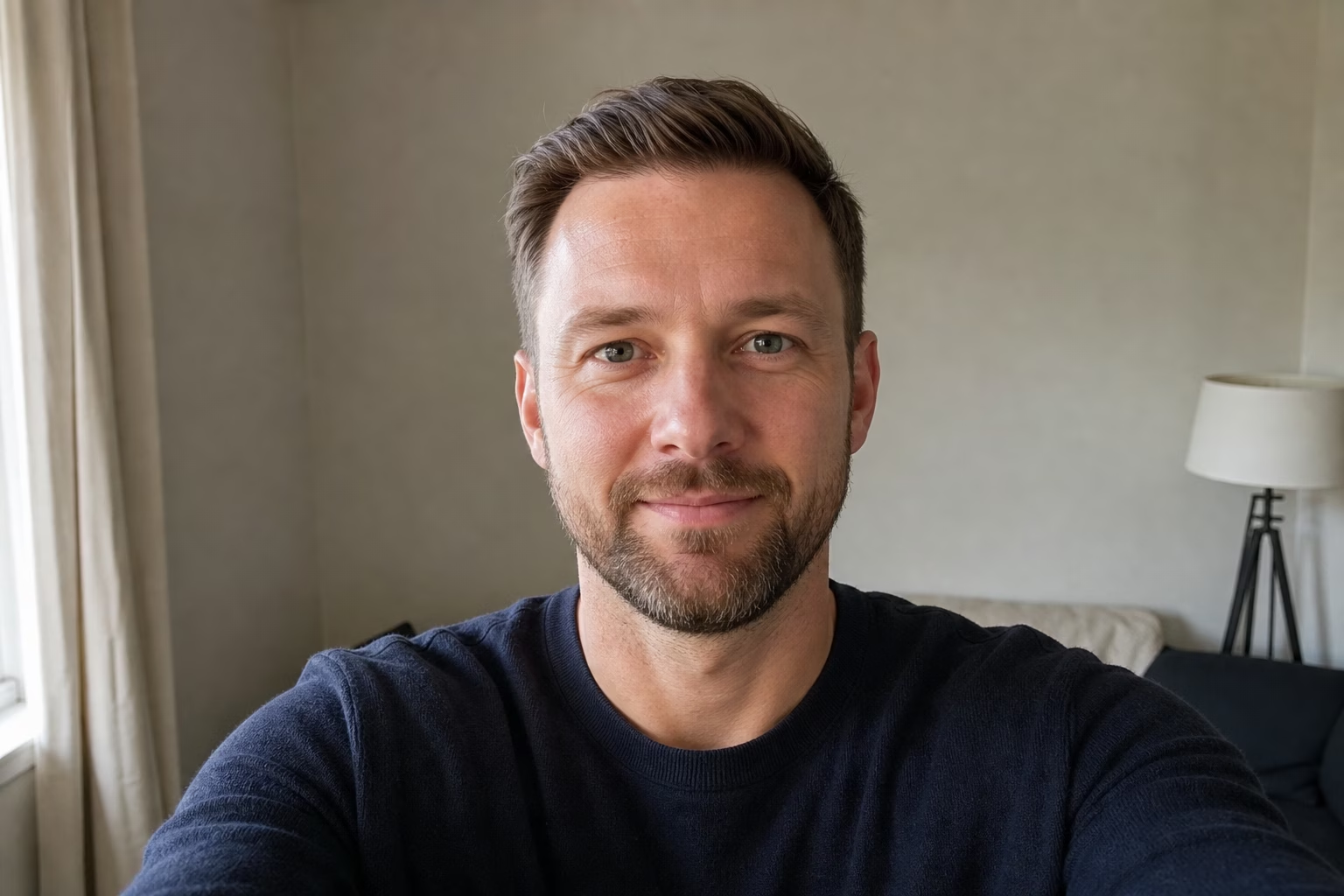
- Обърнете се към камерата или се завъртете само малко. Екстремните ъгли затрудняват крайното кадриране.
- Запазете и двете очи рязки и видими. Очилата са добре, но отблясъците върху очите не са.
- Избягвайте размазване от движение по лицето. По-ясен източник дава на pxGuru повече детайли за очите, краищата на косата и структурата на лицето, които да запази.
- Използвайте мека предна или странична светлина. Прозорец, сенчесто място на открито или ярък облачен ден работят добре.
- Оставете място над косата и под раменете. Кръглото кадриране на LinkedIn ще премахне ъглите.
- Носете това, което правдоподобно бихте носили за клиентско обаждане, интервю, екипна страница или биография на основател.
- Пропуснете шапки, слънчеви очила, тежки филтри, баджове за събития, заети стени и други разсейващи елементи.
Ако използвате генератора за AI портрети, изходната снимка не трябва да изглежда като студиен портрет, но все пак се нуждае от ясно лице. В текущия поток на инструмента pxGuru качвате един портрет и избирате контроли за предварителна настройка, фон, гардероб, осветление, кадриране, изражение, коса, очила и ретуширане. Страницата на инструмента посочва, че едно генериране на портрет използва 50 кредита и че примерните снимки не използват кредити.
Собствените съвети за снимки на LinkedIn препоръчват скорошна самостоятелна снимка, прост фон, подходящо за работа облекло, мека естествена светлина и кадриране, при което лицето заема около 60% от кадъра. Ръководството за портрети със смартфон на WIRED дава подобни практически съвети за телефонни снимки: използвайте естествена светлина, чист фон, задната камера и таймер или статив, когато е възможно.
Започнете с LinkedIn. Ако резултатът изглежда твърде небрежен, опитайте Corporate; ако изглежда твърде скован, опитайте Natural. Използвайте Executive само когато по-официална снимка в стил лидерство подхожда на ролята. Отнасяйте се към предварителната настройка като отправна точка, след което коригирайте частите, които не отговарят на снимката или ролята.
Фон
Изберете Studio gray, Clean white, Blue-gray, Soft office, Glass office, Conference room или Outdoor, когато оригиналната обстановка разсейва от лицето ви. Започнете със Studio gray или Soft office, когато искате по-малко твърди линии зад главата.
Гардероб
Изберете облеклото за ролята, която тази снимка трябва да подкрепи: интервю, клиентско обаждане, биография на основател, вътрешен указател или публичен профил. Опциите с костюм и блейзър са подходящи за роли, където се очаква класическо бизнес представяне. Опциите с риза, блуза, плетен топ, водолазка и елегантен ежедневен стил могат да бъдат подходящи за роли, където достъпността е важна.
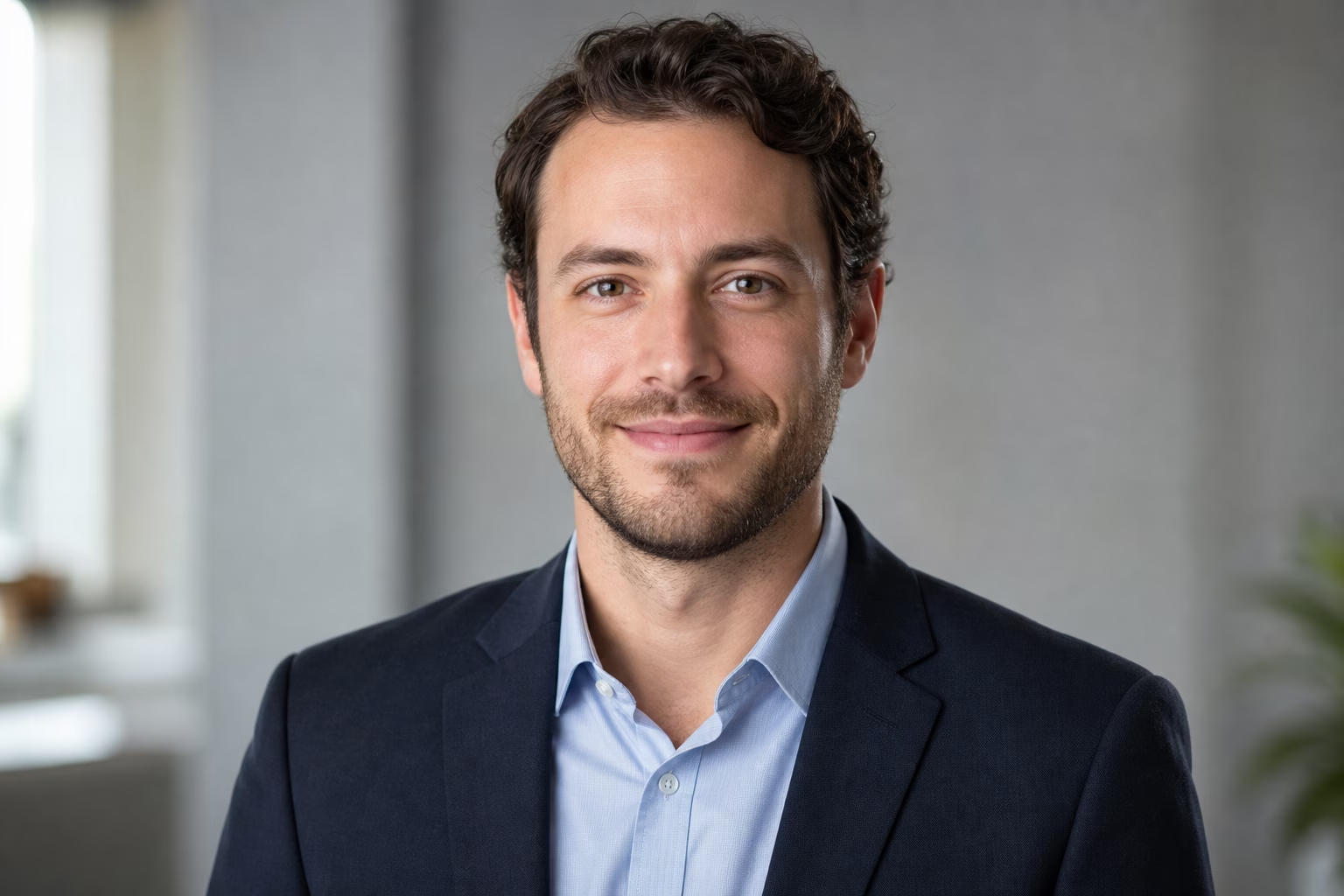
Примерни настройки на pxGuru
| Текуща снимка | Първи настройки за опит | Приемете резултата, когато |
|---|---|---|
| Рязко лице, претрупан фон от кухня или спалня | LinkedIn предварителна настройка, Studio gray или Soft office фон, запазете изражението близко до оригинала | Лицето изглежда непроменено и фонът вече не конкурира |
| Ясно селфи, тениската изглежда твърде небрежна | LinkedIn или Natural предварителна настройка, риза или елегантен ежедневен гардероб, минимално ретуширане | Облеклото изглежда правдоподобно за вашата роля и ръбовете на шията/яката са чисти |
| Добро изражение, резки вътрешни сенки | LinkedIn предварителна настройка, Studio soft или Natural light, ретуширане с текстура на кожата | Очите са рязки и лицето все още има естествена дълбочина |
| Снимка с очила с отблясъци | Запазете оригиналните очила, ако очите са ясни, или използвайте настройката за очила, която намалява отблясъците, ако отблясъците скриват очите | Рамките са прави и двете очи остават видими |
| По-стара снимка, която вече не ви съвпада | Използвайте нова изходна снимка вместо AI настройка | Резултатът изглежда като човека, когото някой би срещнал или видял на обаждане днес |
Осветление
Използвайте Studio soft, Natural light, Window light, Bright, Warm или Overcast, когато оригиналната снимка има резки сенки или плоско вътрешно осветление. Избягвайте драматично и нискоконтрастно осветление, освен ако индустрията ви не използва този стил. В LinkedIn лицето трябва да се разчита бързо в размер на миниатюра.
Изражение и ретуширане
Запазете изражението близко до оригиналната снимка. Започнете с Natural smile, Warm, Calm или Confident, преди да опитате по-силна промяна на настроението. За ретуширане започнете с Minimal или Skin texture. Използвайте Reduce shine само когато блясъкът е действителен проблем. Ако резултатът изглежда по-гладък от вас във видео разговор, значи е твърде много.
Не използвайте AI резултат, който променя самоличността. Отхвърлете изображения, при които линията на челюстта, формата на очите, възрастта, тонът на кожата, линията на косата, очилата или изражението вече не съответстват на човека.
Не оценявайте крайното изображение само в пълен размер. LinkedIn показва вашата снимка в няколко малки контекста: резултати от търсене, съобщения, коментари, заявки за връзка и профилни карти. Снимка, която изглежда детайлна в голям преглед, може да се превърне в тъмен кръг след изрязване.
- Отворете експортираното като квадрат и си представете, че ъглите са премахнати. Горната част на косата, линията на челюстта, яката и линията на раменете трябва да останат вътре в кръга.
- Отдалечете се, докато лицето стане малко. Очите, устата и очертанията на главата трябва все още да са ясни.
- Сравнете го с оригинала. Човекът трябва да изглежда като същия човек, когото бихте разпознали днес.
- Проверете ръбовете на дрехите, ушите, очилата, косата, зъбите и фоновите линии за AI артефакти, като изкривени рамки, неравномерни зъби, скъсани ръбове на косата или фонови линии, пресичащи главата.
- Попитайте дали снимката отговаря на заглавието и ролята. Основател, медицинска сестра, адвокат, дизайнер и студент не трябва да използват един и същ стил.
- Качете квадратен JPG или PNG с размери 400 x 400 пиксела или по-големи, и го запазете под ограничението на LinkedIn за размер на файла от 8 MB.
Преди качване, сравнете резултата с оригинала. Ако някой от видео разговор не би ви разпознал, изберете по-лек предварителен настройка или започнете от по-добра оригинална снимка.
- Изберете скорошна снимка, на която лицето ви е рязко и не е закрито.
- Мислено изрежете за кръг преди редактиране. Оставете място около главата и раменете.
- Отворете AI headshot generator и започнете с LinkedIn, Corporate, Executive или Natural.
- Изберете прост фон, облекло, съобразено с ролята, меко осветление и сдържано ретуширане.
- Генерирайте само опциите, от които се нуждаете, тъй като всяко генериране на профилна снимка използва 50 кредита.
- Отхвърлете всичко, което променя самоличността.
- Експортирайте най-разпознаваемата версия и я качете като квадратно изображение.